
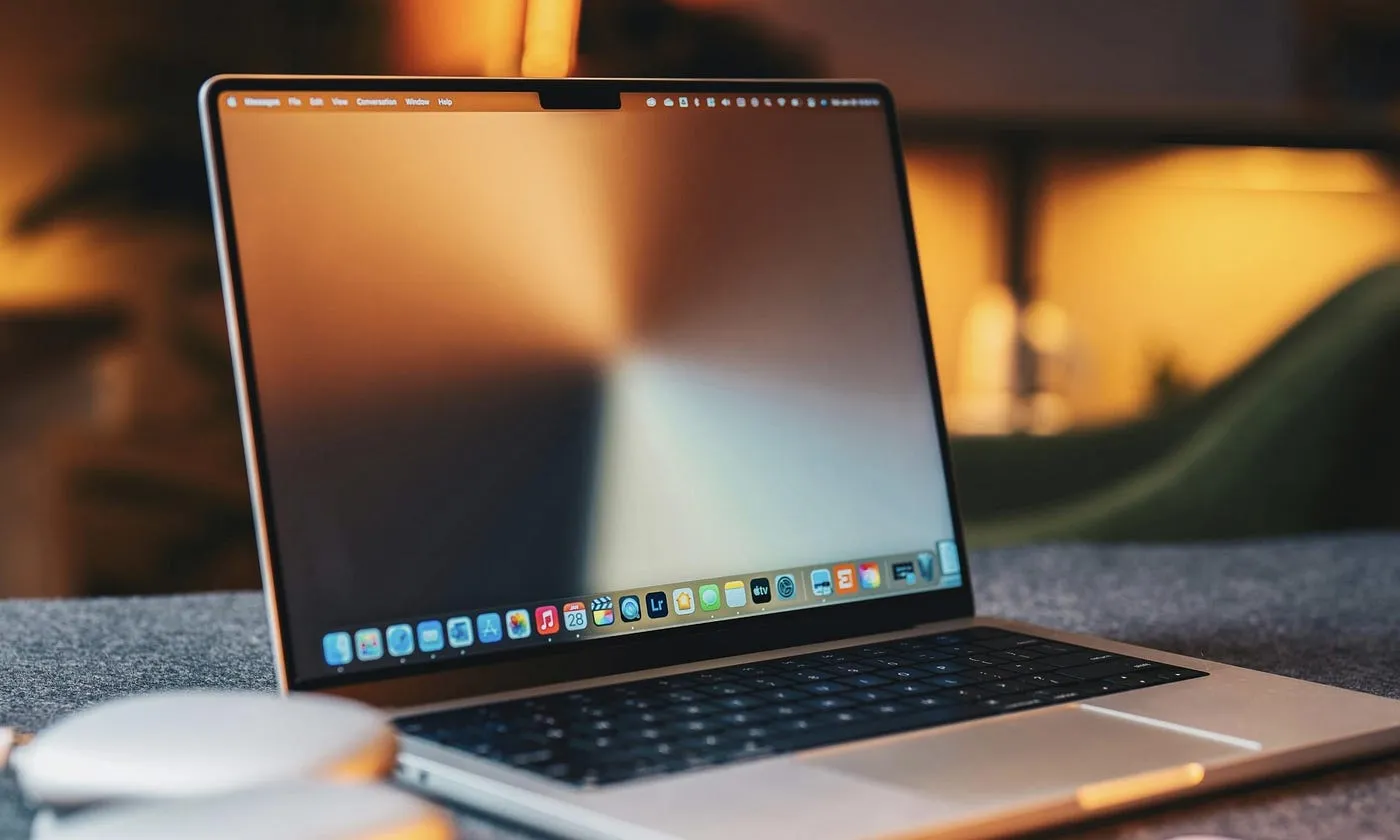
Apple announced the 14-inch MacBook Pro with M6 on 27 October 2026, starting at $1,999, with pre-orders open from 28 October and the first machines arriving on Friday 6 November. The keyboard is not part of the upgrade story. It is the same Backlit Magic Keyboard with Touch ID as the M5 model it replaces, with 78 keys on the U.S. model or 79 on ISO layouts. So the smartest day one move is the same as ever: test every key in your browser, which takes about two minutes.
M6 MacBook Pro keyboard: what Apple kept, and how to test every key
A chip launch makes the keyboard easy to overlook, and this one is no different. Almost every headline about the M6 MacBook Pro went to the new processor and the faster wireless, while the part your hands actually live on went unmentioned. This post covers the launch facts first, then the keyboard in plain words: exactly what it is, what did and did not change, and how to test every single key while your return window is still open.
On this page:
The M6 MacBook Pro launch, in short · What is actually new: chip and connectivity · What keyboard does the M6 MacBook Pro have? · Did the keyboard change from the M5 model? · How to test every key on the M6 MacBook Pro · Why does the Fn key not light up in a keyboard test? · M6 MacBook Pro keyboard FAQs
The M6 MacBook Pro launch, in short
Apple announced the 14-inch MacBook Pro with M6 in a press release on 27 October 2026. There is one size only: no 16-inch M6 model exists. It comes in space black and silver, starts at $1,999, or $1,899 with education pricing, and runs macOS 27 Golden Gate. Pre-orders opened on 28 October, and the first machines reach customers and shops on Friday 6 November 2026. A day after this announcement, Apple also unveiled the touchscreen MacBook Pro with PROLED XDR Display, which sits above this model in the line. This post is about the standard 14-inch machine, the one most people will actually buy.
What is actually new: chip and connectivity
The upgrade lives inside. The M6 chip has a 12-core CPU, a 12-core GPU, and a Dual 16-core Neural Engine. Memory starts at 16GB and goes up to 32GB, and storage starts at 1TB and goes up to 4TB. Wireless takes a step up too, with Wi-Fi 7 and Bluetooth 6 handled by Apple's N1 chip, and battery life is rated at up to 24 hours. Those are the numbers that will decide whether this machine is worth it for you, and they are a solid step over the M5 model for people who render, compile, or edit video all day.
Just as much did not change. The display is still a Liquid Retina XDR mini-LED panel, not OLED, and it has no touch input. If touch is what you want, that is the MacBook Pro with PROLED XDR Display announced a day later. The body is the same design as the M5 model this one replaces, with the same ports and the same shape. Apple is presenting this launch honestly, as a chip and connectivity update, not a redesign. The keyboard belongs on that unchanged list too, and the next section covers it in full.
What keyboard does the M6 MacBook Pro have?
It has a Backlit Magic Keyboard with Touch ID. The U.S. model has 78 keys, or 79 on ISO layouts used in much of Europe, and that count includes 12 full height function keys along the top and 4 arrow keys in an inverted-T arrangement at the bottom right. An ambient light sensor adjusts the backlight brightness on its own as the light in your room changes, and below the keyboard sits the large Force Touch trackpad. At the right end of the function row is Touch ID. Touch ID is a fingerprint sensor, not a typing key: it unlocks the Mac, approves payments, and fills passwords, and pressing the button locks the Mac, which is the quickest way to confirm the button itself responds. Because it sends no key signal, no website can test Touch ID for you, and that includes our tester. One honest note for spec hunters: Apple does not publish a key travel figure for this keyboard, so treat any exact number in a review as that reviewer's own measurement, not an Apple figure. If you are also shopping for a separate keyboard for your desk, our guide How to Choose a Keyboard in 2027 explains how laptop style scissor keys compare with mechanical and membrane boards.
Did the keyboard change from the M5 model?
No, and it is worth saying plainly. The Backlit Magic Keyboard with Touch ID on the M6 model is the same keyboard Apple shipped on the 14-inch MacBook Pro with M5 that it replaces: same layout, same full height function row, same backlight, same feel. Nothing about the typing experience is part of this upgrade. If you have typed on the M5 model, you already know exactly how this keyboard feels, and if you disliked that keyboard, the M6 will not change your mind. Judge this machine on its chip, its wireless, and its battery, because those are the parts that actually moved.
How to test every key on the M6 MacBook Pro
Open the free tester on the MacBook itself, right here on the homepage, with no install and no sign up. Above the on-screen board, choose the Apple Mac layout, and pick the Laptop size so the board on screen matches a laptop's shape instead of showing a separate numpad block your MacBook does not have. Then work through the physical keyboard row by row, pressing each key once with a normal, firm press. Every working key lights up on screen as it responds. Do not skip the quiet corners: the function row, the inverted-T arrow keys, Escape, and the modifier keys on both sides of the space bar. Finish by holding a few keys down together, the way you would for a shortcut, and check they all register at the same time. Our step by step guide How to test keyboard keys properly gives the full order that catches dead keys and double typing. If one key never lights up, press it once more, check for a crumb under it, and if it still stays dark, talk to Apple while the return or exchange window is open. A dead key found in week one is a replacement. The same key found in month three is a repair appointment.
Why does the Fn key not light up in a keyboard test?
This is the one honest limit of any browser based test, and it is not a fault with your MacBook. macOS handles the Fn key itself, at the system level, so on most Macs the press never reaches the browser at all. The tester cannot light up a key press it never receives. It is the same reason the Windows key cannot be tested on a Windows laptop. If the physical Fn key clicks normally and it changes the function row behaviour the way it should, it works. In our tester you can click the on-screen Fn key with your mouse or trackpad to mark it as tested, so your finished test still covers the whole board.
M6 MacBook Pro keyboard FAQs
What keyboard does the M6 MacBook Pro have? A Backlit Magic Keyboard with Touch ID, with 78 keys on the U.S. model or 79 on ISO layouts, including 12 full height function keys and 4 arrow keys in an inverted-T arrangement.
Did Apple change the keyboard on the M6 MacBook Pro? No. It is the same Backlit Magic Keyboard with Touch ID as the M5 model it replaces. The M6 update is the chip, plus Wi-Fi 7 and Bluetooth 6.
How much does the M6 MacBook Pro cost, and when can I buy it? It starts at $1,999, or $1,899 with education pricing. Pre-orders opened on 28 October 2026, and it is available from Friday 6 November 2026.
How can I test the keys on my M6 MacBook Pro? Open the free tester on the MacBook itself, pick the Apple Mac layout, and press every key row by row. Each working key lights up on screen. The whole check takes about two minutes.
Why does the Fn key not light up in the test? macOS keeps the Fn key for itself, so the press usually never reaches the browser. The key is almost certainly fine. Click the on-screen Fn key in the tester to mark it as tested.
The M6 MacBook Pro is a chip story, not a keyboard story, and that is fine. The Magic Keyboard it ships with is proven, backlit, and comfortable for long days of typing. Spend two minutes testing every key while returns are still easy, and then forget about the keyboard and get on with your work.
More keyboard guides are on the blog.